Pixie
Getting Started
Pixie works best when the basics are configured correctly before you start using it day to day.
What You Need
- An Apple Watch running a supported watchOS version
- A Plex account with access to a music or audiobook library
- Real watch hardware for meaningful playback and download testing
- Plex Pass for some remote streaming and download scenarios
Audiobooks And Long-Form Audio
For chapter-aware audiobook controls, bookmarks, and resume-friendly long-form playback, enable Store track progress on the specific Plex library you use for audiobooks.
This setting is library-specific. Turning it on elsewhere in Plex will not help if the audiobook library itself does not have it enabled.
What Pixie Can Do
- Sign in to Plex and choose a server directly on Apple Watch
- Stream over WiFi or cellular
- Download albums and playlists for offline playback
- Start artist, album, and track radio for music libraries
- Show lyrics when the track has them
- Handle audiobook chapter metadata, bookmarks, and spoken-word controls
- Adjust playback settings such as speed, sleep timer, and queue behavior
- Cast playback to other Plex players
Watch Face Access
Pixie supports Apple Watch complications so the app can stay one tap away from your watch face during daily use.
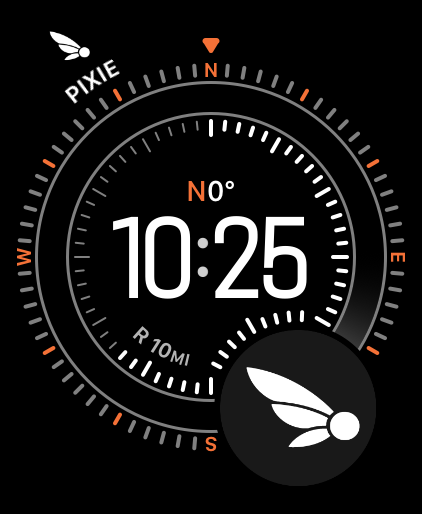
Accessory Corner, Circular, Inline, and Rectangular complication support keeps Pixie close at hand.
Child Apple Watch Setup
If you want to use Pixie on a child-managed Apple Watch, read the family setup walkthrough.
That guide covers the supported Family Setup path, how to keep the Plex side curated, and how to make the watch feel more like a dedicated music player without overstating what watchOS can lock down.
Good Ways To Use It
- First-time sign-in and server selection
- Streaming on WiFi
- Streaming on cellular
- Downloading albums or playlists for offline playback
- Trying radio mode or station playback for music discovery
- Testing audiobook playback with chapter metadata and saved progress
- Using playback settings and Plex player casting
Tips for Faster Downloads
Apple Watch aggressively manages its WiFi radio to save battery. When Bluetooth is connected to your iPhone, the watch often routes network traffic through the phone over Bluetooth, which is significantly slower than a direct WiFi connection.
To get the fastest download speeds:
- Open Settings > Wi-Fi on your Apple Watch and make sure WiFi is turned on and connected to your network
- Optionally, turn Bluetooth off temporarily in Settings > Bluetooth — this forces the watch to use its own WiFi radio instead of routing through your phone
- Place the watch on its charger while downloading — the system is less aggressive about turning off WiFi when charging
- Turn Bluetooth back on when your downloads are finished
This can make a noticeable difference, especially when downloading large albums or playlists.
Support
If you run into a problem, include:
- Apple Watch model
- watchOS version
- Plex server type
- Whether the issue happened during streaming or offline playback
Send notes and screenshots to pixiesupport@wrightworksstudios.com.